How to make signed commits with Keybase and PGP
2020-05-19

Contents
A relatively unknown and underused feature of Git is the ability to cryptographically sign commits. It’s an optional feature that provides a way for the author of a commit to prove ownership.
It uses the author’s GPG key to leave a signature on the commit that can be verified later. If you’re a Keybase user, it’s very easy to use Keybase’s GPG key to sign your Git commits.
After you sign your commits, GitHub provides a nice interface to verify whether commits were signed and by whom.
Why sign commits?
Git will accept any name and email address as a commit author, and so will GitHub. So if you set the author on a commit to a valid email address, it will look like they made the commit. This is due to the distributed nature of Git, which allows anyone to push other people’s commits. However, from a security standpoint, this is a problem.
Unfortunately, there’s no way to prevent someone from making a commit with your name and email. However, Git supports cryptographically signed commits using a GPG key. This allows GitHub to mark your commits as Verified when it can match your verified email to your GPG key. This won’t prevent someone from trying to forge your commits, but it will ensure your real commits can be properly verified.
Keybase and GPG
Installing Keybase
Ubuntu
64-bit
curl --remote-name https://prerelease.keybase.io/keybase_amd64.deb
sudo apt install ./keybase_amd64.deb
run_keybase
32-bit
curl --remote-name https://prerelease.keybase.io/keybase_i386.deb
sudo apt install ./keybase_i386.deb
run_keybase -g # run without GUI; it is not supported on 32-bit Linux
Mac
Install the Keybase.dmg available here
Installing GPG
Ubuntu
apt gnupg
Mac
brew install gnupg
GitHub and Keybase
From here on I assume you have created accounts on GitHub and Keybase.
GitHub provides a settings page to set your GPG key; however, if you upload your raw GPG key from Keybase, it will likely contain a Keybase user reference: username@keybase.io.
This is not an active email address and therefore GitHub will not be able to verify it. It also doesn’t match the email address in your commits. So we need to do a few more things to get everything working.
Updating the PGP key (from Keybase)
First, export your public and private keys from Keybase using the command:
keybase pgp export > keybase-public.key
keybase pgp export --secret > keybase-private.key
During the export process, Keybase will ask for your account password and prompt you to set a new password for the private key file.
In the next step, you need to import the keys into GPG:
gpg --allow-secret-key-import --import keybase-private.key
gpg --import keybase-public.key
The import process will ask for the password you just assigned to your private key.
Adding new users
Now that you’ve imported the key into GPG, you need to modify the key to include your personal email or company email. If you haven’t configured anything, your identifier is probably <username>@keybase.io, otherwise it’s the email you set in Keybase.
gpg --edit-key <username>@keybase.io
This command opens the gpg> prompt and from there you’ll need to run the adduid command. It will ask for your real name (Real name) and email address (Email address), feel free to leave the comment (Comment) blank.
gpg> adduid
Real name: <your name>
Email address: <your email>
Comment:
You selected this USER-ID:
    "<your name> <your email>"

Change (N)ame, (C)omment, (E)mail or (O)kay/(Q)uit?
After providing your name and email, confirm with O and save to close gpg>.
Once done, you can send your updated key back to Keybase.
keybase pgp update
Trusting your GPG key
At this point, your key is not trusted by GPG and is marked as unknown (unknown).
If you’re following this tutorial specifically to sign git commits, it’s important that when auditing signatures (for example, with git log --show-signatures), you don’t see your signatures marked as untrustworthy (untrustworthy).
This can be done by opening gpg> again using gpg --edit-key <key> and selecting the trust option. I suggest using trust level 5 = I trust ultimately, as it’s your own key. After applying the change, use save to close.
Adding the key on GitHub
This is the easiest part, go to your Keybase profile (https://keybase.io/<username>) and click on the public key in the identity list.
Go to
Settings > SSH and GPG keys
on GitHub and add it with New GPG Key.
Signing Git commits
Finally, the last thing needed is to tell the git command to sign commits with your key.
Use the git config option user.signingkey to specify the key ID for git to use. You can get this from the GitHub GPG keys page where you added it, if you’re not sure what the ID is.
You can also require Git to sign all commits with the commit.gpgsign option:
git config --global user.signingkey <Key ID>
git config --global commit.gpgsign true
Verified Commits
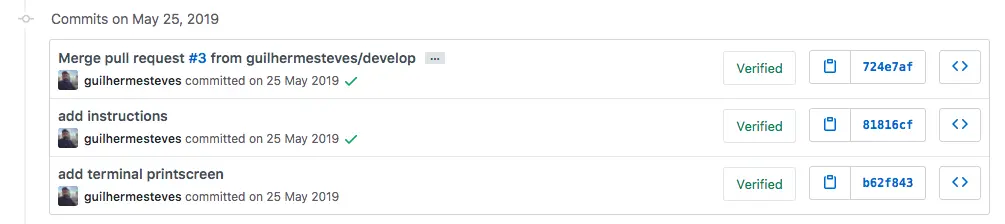
Any future commit from this system/user will be verified, proving that you are the author. Signing git commits won’t inhibit forgery, but it will provide assurance of real commits so they can be properly verified.
Latest Articles


The human interaction in emojis
2020-06-09

Leading small teams
2020-06-04